To facilitate lecturers' being able to - infuse the effective and creative use of technology into their instructional environment without loosing sight of curricular objectives
- examine course outlines and assess how technology could be used to enhance the instructional process
- select appropriate digital material to enhance the delivery of course content
- serve, through their practice, as models of effective ICT integration for teacher-trainees
TOPICS- Introduction to issues related to Web 2.0, web 2.0 Directories
- Web Browsers. Extensions and Add-ons (Firefox and Chrome) to improve funcionality
- Creating gmail account, sending attachments
- Word Processing activities - Using the comment feature to annotate assignments sent as attachments.
- Presentation tools - enhancing PP presentations
- Review of basics
- Inserting files, images, links
- Adding voice and timings to slides in Slide Show mode to create a video-type presentation - the presentation runs automatically
- Creating a 'jump slide' - making an image a hot spot (insert image on slide, highlight image, click 'hyperlink' in menu bar, key in URL in address box at the bottom of the page, confirm)
- Creating / Inserting screenshots / images and adding text (use text box in Insert menu) (written, recorded) on slides to prepare 'how to' guides. (Select 'text and content' layout).
- Adding You Tube videos to power point presentations
- The video has to be converted. This conversion facilitates being able to play the video off-line
- Identify the You Tube video that you need to insert
- Copy URL (from the address bar)
- Go to keepvid.com
- Paste in URL of the video
- Select MP4 option
- Convert
- Save converted version on your computer
- Insert into Power Point slide.
- Video will play in Slide Show mode
- PowerPoint repositories: slideshare.net, authorstream.com, powerpoint-search.com, slidefinder.com
- Uploading presentations / documents (created by you) to slideshare and creating video conference with Zipcast
- Uploading presentations to authorstream.com and slideshare.net to generate embed codes. This facilitaters embedding inton websites
- Using Google Docs - Presentations to monitor the process when presentation tasks are assigned to students.
- Use screencast-o-matic.com to create 'how to' guides. (Screencast can be saved in mp3 format and copied to a CD)
- Saving to CDs
- Uploading screenshots to knovio.com to create 'how to' tutorials
- Tutorials using tildee.com
- If webcam is available, use present.me to add video instead of voice only to a presentation / knovio.com
- Using power-point templates to prepare support material. Go to Links page for templates
- Jeopardy / Who wants to be a Millionaire / popular game shows
- purposegames.com, classtools.net
- Some web-based presentation tools - spicynodes.com, mindomo.com, mindmeister.com, prezi.com, wordle.net (main ideas for a topic)
- Search tools, Bookmarking (diigo.com, google bookmarks, yahoo bookmarks, evernote.com, Cloud storage), Web Trails (fave7.it, jogtheweb.com), Curating topics, scoop.it. Sending large files, Virtual Field Trips
- Prezi: Google Search Tricks. See Links page
- Creating a basic web-page using pen.io. See Links page, 'Creating a basic on-line presence'. (Use as a mini worksheet)
- Document Search - slideshare.net, scribd.com, docstoc.com, authorstream.com
- Keeping current - Setting up Google Alerts
- Printing support - printwhatyoulike.com, printliminator.com, joliprint.com
- Converting webpages to PDF - pdfmyurl, Print to PDF for Google, iweb2x(sciweavers.org)
- Creating major web-based containers: Google sites, inserting content, linking, embedding, attaching files
- Creating personal reflective blogs, using text, video as new posts.
- Exploring possibility of students' maintaining their own reflective blog
- Creating a Wiki. Exploring use in a collaborative student project
- Image-based discussion / collaborative activity - voicethread.com
- Assessment tools - On-line quizzes, Rubrics, Web Quests
- Web-based resources - for lecturers and student-teachers: Flash Cards (memorize.com, quizlet.com, stusystack.com), Interactive Activities, Virtual Labs, Puzzlemakers and worksheets, Lesson Plans, making pop-up books, blockposters.com (enlarging images)
- Sites to support instruction in specific subject areas
- Finding and creating audio material - iTunes podcasts, audioboo.com, audacity.com, vocaroo.com, eyejot.com, recordr.tv, chirbit.com
- Finding video resources. Alternatives to You Tube - snagfilms.com, schooltube.com, dotsub.com.
- Embedding YouTube video into MS Word Documents / Uploaded Slideshare presentations
- Creating multimedia resources - viddler.com, ustream.tv
- Creating screencast / Voicethread tutorials
- Collaborative tools to provide remote support, scheduled discussions - vyew, skype, basic video/chat rooms
- Creating and using rubrics
- QR Codes
|
|
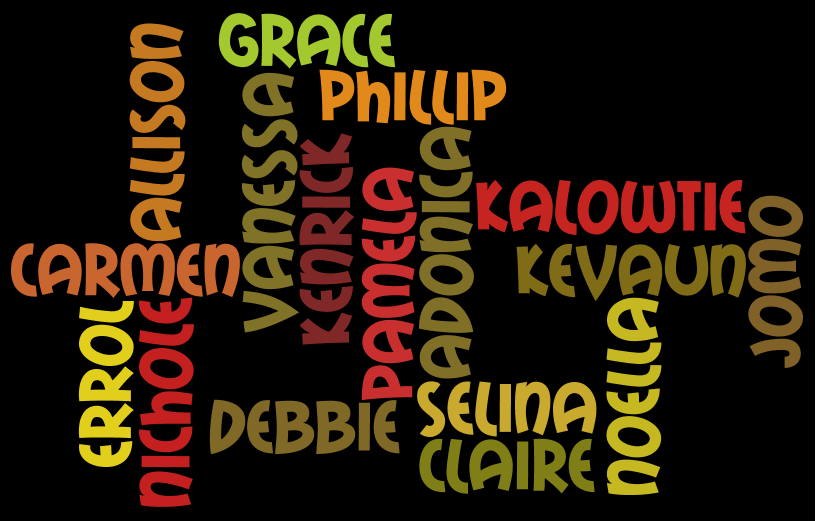
Attendance: Friday, 13th May, 2011.
Check for your name
SESSION 1: Friday, 13th May, 2011
- Common Misconceptions - True / False Quiz. Printed copy available. Check Link page for downloadable version
- Presentation - A Whole New World
- Short video - Vision of 21st Century Teacher - summarizes benefits of ITC.
- Web 2.0 Directories (Go to Links page and second flower on Home page)
- Reading material on Web 2.0 - See Links page
- Revised Bloom's Taxonomy (See Links page)
- Creating gmail accounts. These are needed for registering at web 2.0 sites
- Posting to Blog and Forum. Email addresses are necessary for making posts. Links to the sites can be found on the Links page. Tasks are posted on the sites
Introducing the Back ChannelBack-channeling
is having real time online conversations alongside live presentations.
A
back-channel lets participants ask questions, discuss what is being
presented.
Back-channeling
could be described as “virtual whispering or note passing” during
lessons, presentation or activities.
Go to Links page for access to TodaysMeet, the area to be used for virtual exchanges during our PD sessions.
SESSION 2: Friday, 20th May, 2011- Commend colleagues for their willingness to find the time to carry out the practice activities. This demonstrates the positive approach that the integration of ICT into the teaching arena requires
- Encourage them to read the material provided to increase their knowledge of the web 2.0 scenario. See links page
- Posting comments to blog - creating a conversation thread. The specifics for this task are posted on the blog site created for these sessions. See links page for access to that site
SESSION 3: Friday, 27th May, 2011The session was not held as planned - General Assembly. Activities will be done in Session 4 SESSION 4: Friday, 3rd June, 2011Tasks were not done as planned. Six persons attended and requested that we concentrated on creating blogs. Unfortunately, because of the unpredictability of the internet, all participants could not engage on hands-on practice. The facilitator demonstrated the process using her laptop and the projector. Participants agreed to continue the process and seek support as necessary. Attention will be given to word processing activities and creating the web page in Session 5 - Short video - Vision of 21st Century Teacher - summarizes benefits of ITC.Remind them to make comments at the back channel site
- Some web 2.0 directories. Teacher resources. Bloom's Digital Taxonomy and web 2.0 tools. See Links page
- Word Processing activities
- Inserting
comments on downloaded assignments. (I will need to send attachments to lecturers to be used as practice material)
- Remind them that a downloaded attachment is a 'read-only' document. 'Save as" function has to be applied
- Sending back the saved, annotated document as an attachment. Review sending attachments if necessary.
- Copying and pasting material from web pages into word documents
- Saving to CDs (files, material from web-pages)
The ChallengeYou are participating in a workshop, overseas. This means that you will not be able to meet with a group of your students as per timetable. You want to ensure that they are constructively engaged during your absence. Therefore you decide to create and make use of a Google web site. Use the plan below to inform your preparation. - Create your site. Make careful note of its URL
- Add a new page
- Select a topic from your content area
- Identify links, YouTube videos. Bookmark them
- Identify images. Save them
- Key in relevant text to introduce the entire activity (objective, tasks / activities)
- Insert at least two links, with brief descriptions
- Insert at least three images, with explanatory captions
- Insert at least one video, with comments
- Identify a culminating task, complete with submission date and manner of submission.
Please remember to give the URL to your students before you leave.SESSION 5: Friday, 10th June, 2011The session was not held as planned. Activities will be done in Session 6 |

